Website Development Prices

Pretrazite Blog // Search This Blog

Showing posts with label Photoshop. Show all posts

Thursday, October 15, 2015

Easy Oil Painting in Photoshop

1. Click File than Open or (CTRL and O).

2. Navigate to the image you want and press Open button.


3. Duplicate layer by pressing CTRL and J. Rename your layer.

Jeans background in Photoshop

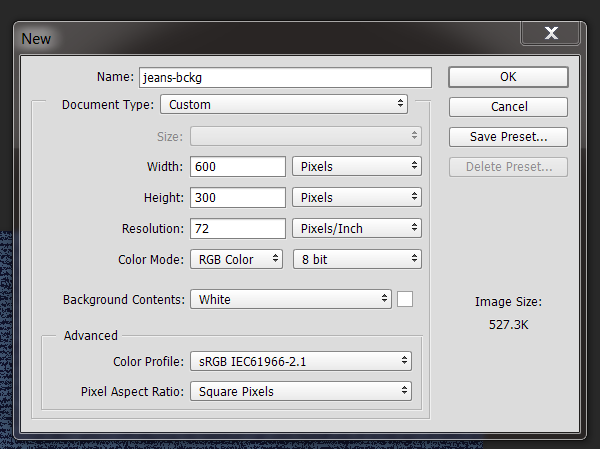
1. Create a new document . For this tut I used 600px x 300px.


2. Fill the layer with a blue color 183e6e.


3. Create a new layer, name it grey and fill it with grey color 7b7b7b.

Old Paper Background Photoshop

1. Create a new document . For this tut I used 600px x 300px.


2. Set the Foreground color to c59b6d and the Background color to e1caa9. 


3. Fill the layer with the background color e1caa9.
4.  Create a new layer, change name to clouds. 

How to install new brush

1. Click on Brush Tool (B).


2. From top bar, pick Load Brushes.


3. Navigate to the brushes folder and than to the .ABR file, which you previously extracted.


4.  Select the file and press Load button.


5.  To see brushes check Show Recent Brushes. Your brushes will appear at the end.


Fire background in Photoshop

1. Create a new document . For this tut I used 600px x 300px.


2. Set the colors to Foreground to black and Background to white (D).
3. Go to Filter, hover over Render and click on Clouds.

Monday, October 12, 2015

Glass Button Photoshop

0. Create new document.

1. From tools select foreground color to dark grey (444343).


2. Click on Paint Bucket Tool (G), from tools and apply color by clicking on white background.

Sunday, October 11, 2015

Add an Outline to a Button

0. Create new document.

1. Select Rounded Rectangle Tool (U) and create button.


2. Select the Layer (Rounded Rectangle 1).


3. Click on fx button at the bottom of the Layers panel.

4 Ways to add stroke

Adding Stroke to already created shape

Option 1: from menu bar click Layer, than Layer Style and click on Stroke.


Option 2: in Layer Panel click fx buttom and than Stroke. 


Option 3: Double click on layer you want to add stroke. Be sure not to click on name, click on image (square). On left side, from Styles, click Stroke.

Friday, October 9, 2015

Create New Document in Photoshop

1. Click File, than New or CTRL N. 
2. In the Name field type the name of your file. 


3. In the Document Type choose what type of document you want. If you choose "Custom" you can type the size you want. And if you, for example, choose "Web" you will get "Web Most Common" sizes. 

Also, choose what measuring unit you want. 

Rounded Flat Button

0. Create new document.
1. Select Rounded Rectangle Tool (U).


2. Type in the Radius you want.


3. Create button, click, drag and release.

Photoshop Tools


Skola Internet Marketinga